
SEROUI WRITE / USER MANUAL
SEROUI WRITE User Manual
From your first sentence to a finished book, with Obsidian and Notion workflows. Follow the menus one step at a time.
16 October 2026 edition · Web/apps 0.12.0 / Obsidian 0.7.1
Screenshots show the Korean interface. Instructions use the menu names in your chosen language. Layout can vary with window width and operating system.
No matching chapters. Clear the search to show everything.
Start here and choose your platform
SEROUI WRITE is an editor for vertical and horizontal writing in Korean, English, Japanese and Chinese. Everyday writing is free. Pro adds manuscript projects, book layout, document tools, EPUB export and Notion layout publishing.
| Platform | Available release | How to use |
|---|---|---|
| Web | 0.12.0 | Use write.seroui.com in your browser |
| Windows | 0.12.0 · x64 | Portable ZIP build |
| Mac | 0.12.0 · macOS 13+ | Choose Apple Silicon or Intel |
| Obsidian | 0.7.1 · desktop only | Obsidian 1.6.0+; manual installation |
Your first document in five minutes
- Open the editor, choose “New document” and enter a title.
- Choose vertical or horizontal in Document direction, then select a font.
- Write some text and check that the status changes to “Saved on this device”.
- Open the top actions menu and choose “Workspace backup” to download a recovery JSON file.
Install and update on Windows and Mac
Windows: extract the entire ZIP
- Download the Windows x64 ZIP. A dedicated Windows ARM build and Microsoft Store edition are not currently provided.
- Extract everything into a new folder. Keep resources and the other bundled files; do not move only the EXE.
- Run SeroUI-Write.exe. Create a shortcut to this file if desired.
Mac: choose the build for your chip
- Open Apple menu → About This Mac. An M-series chip uses Apple Silicon; an Intel processor uses the Intel build.
- Check that macOS is version 13 or later, download the matching ZIP and extract it.
- Move SeroUI-Write.app to Applications and open it. Both Mac packages are Developer ID signed and Apple notarized.
Move to a newer version
Export a workspace backup and quit the app first. Extract a new Windows ZIP into a new folder, or replace the Mac application. Do not run an app while its files are being replaced. Updates are manual; check the download page. Replacing or removing application files is not a document backup.
On phones and tablets, use the web editor. This release does not include native iOS, iPadOS or Android apps, or a mobile Obsidian plugin.
Find your way around the interface
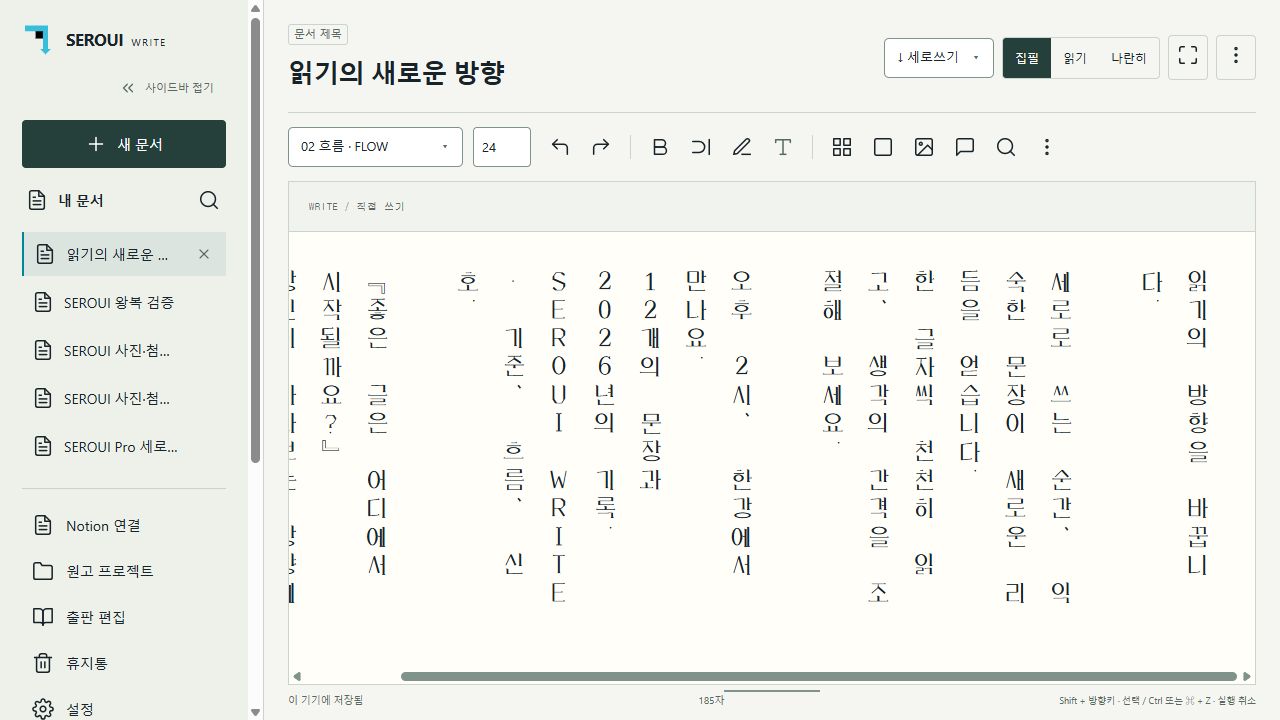
| Location | Control | Purpose |
|---|---|---|
| Upper left | New document · My documents · Search | Create, browse and find documents |
| Sidebar | Projects · Book studio | Pro chapter management and book output |
| Sidebar | Notion connection · Trash · Settings | Connections, restoration and preferences |
| Beside title | Document direction · Write/Read/Side by side | Writing direction and view mode |
| Toolbar | Font · Size · Format icons | Typography and document tools |
| Upper right | Actions + | Statistics, export, backup, PDF and photo layout |
Hover over an icon to see its name. Narrow windows collapse or rearrange controls. Collapse the sidebar for more space. Writing focus mode leaves only a return control; press Escape to return.
Write, read and adjust your workspace
- Choose a document in the sidebar or create a new one. Edit its title in the top field.
- Type in Write, inspect the typeset result in Read, or choose Side by side to see both.
- In side-by-side view, drag the center divider to change the width ratio and the lower resize edge to change pane height.
- Use Settings for light/dark appearance, interface and document languages, Latin orientation, character combining, padding and PDF paper.
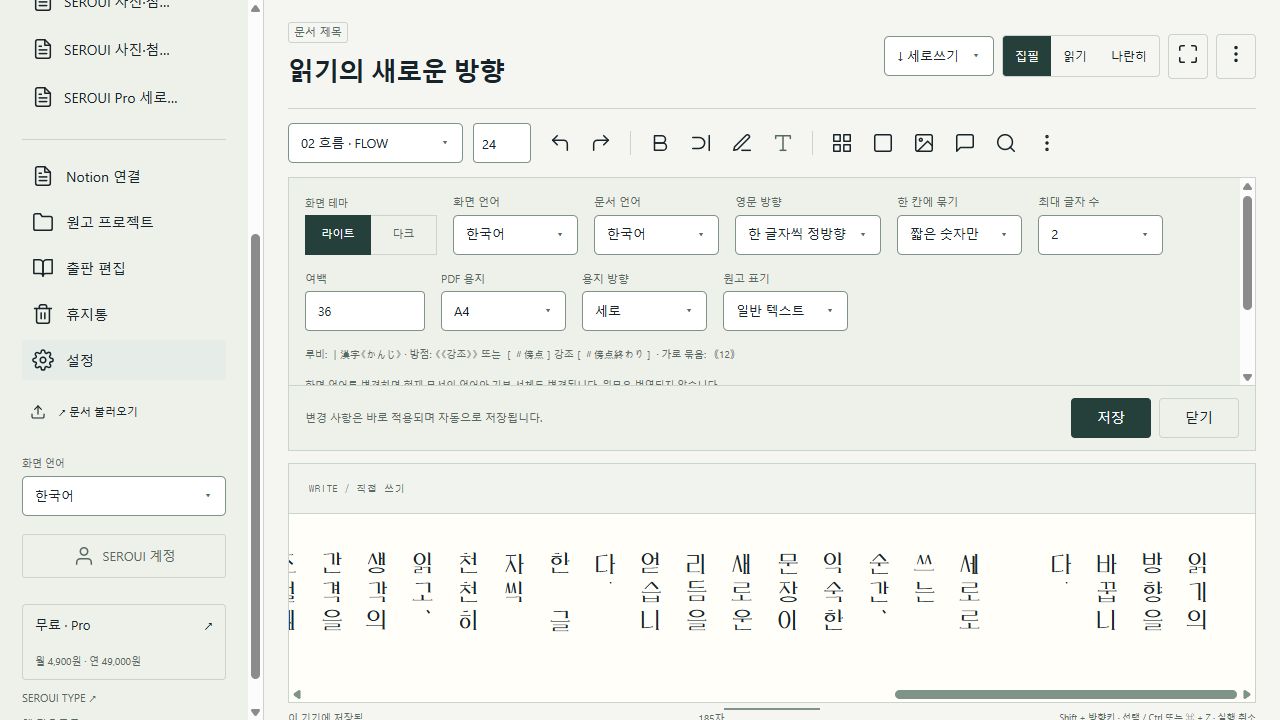
Settings save automatically. Finish a numeric value, then press Enter or move focus to commit it. Save explicitly commits pending input; Close or Escape dismisses the panel. Closing does not cancel applied changes.
Languages, fonts and vertical typography
Choose Korean, English, Japanese or Chinese for the interface. Changing it also selects the current document language and default font, but does not translate your writing. Change Document language separately to keep the interface language unchanged.
- Korean/English: 01 AXIS, 02 FLOW, 03 SIGNAL and 04 system font.
- Japanese/Chinese: regional Noto serif/sans faces and 03 system font. Simplified and Traditional Chinese use separate document languages and fonts.
- Use Upright characters to keep Latin letters unrotated, one character per position. Choose the alternate Latin orientation when sideways text is desired.
- Character combining can group short numbers or short alphanumeric runs in one vertical cell. For two-digit upright horizontal numbers, choose numbers only and a maximum of 2.
Ruby, emphasis and horizontal grouping
Choose Aozora or Markdown under Manuscript notation to render supported annotations. Plain text keeps notation literal. Try the examples below in Read. This is not a complete implementation of every Markdown or Aozora feature.
|漢字《かんじ》
《《emphasis》》
[#傍点]emphasis[#傍点終わり]
⦅12⦆
[#改ページ]Insert photos and choose a layout
- Place the caret, then choose Insert photo. You can also drag in a JPG, PNG or WebP or paste an image. On mobile, use the photo picker.
- Open Photos & layout from the top actions menu, or click the photo. Adjust size, caption, alt text and layout.
- Check the upright photo and surrounding text in Write and Read, then inspect the exported PDF, DOCX or EPUB.
| Layout | Use |
|---|---|
| Inline photo | A photo and caption within the text flow |
| Separate photo page | Give the photo its own page |
| Text around photo | Flow prose around the photo |
| Cover | A photo layout for the beginning of a book |
Photos remain upright while text follows its chosen direction. Inputs up to 20 MB are resized to a maximum edge of 1,920 px. Convert HEIC to JPG first. Limits are 60 photos per manuscript and 64 MB of photos per workspace. Keep the original high-resolution files separately.
Import documents and recognize PDF text
- Choose Import document and select a file. The original is unchanged; extracted content is added as a new document.
- For TXT/Markdown, check the encoding. If text is garbled, select the source encoding instead of auto-detection: UTF-8, UTF-16, Shift_JIS, EUC-KR, GB18030 or Big5.
- Review the title, extracted text and warnings in preview; correct the text before adding it.
PDF: text extraction or OCR
- Enter a page range such as 1-3, 5. Use the password field for password-protected PDFs.
- Use text extraction first when the PDF has selectable text. For scans, select OCR or the option to OCR pages without text.
- Match OCR language and the scan’s writing direction. Adjust reading order, repeated header/footer removal and line joining if needed.
- OCR runs on this device. Korean, English, Japanese and Chinese models are provided; the web may need to download assets on first use. Cancel and retry a smaller range if necessary.
Supported inputs include DOCX, PDF, TXT/Markdown, EPUB, RTF, ODT, HWPX, ENEX and SEROUI workspace JSON/supported ZIP. Convert .doc/.hwp to DOCX/HWPX first. Export .pages from Pages as Word DOCX. Limits: 80 MiB input, 120 MiB expanded archive and 300 selected PDF pages.
Export PDF, Word, EPUB and other files
Standard exports and Pro publishing
| Format | Plan | What to expect |
|---|---|---|
| Standard PDF | Free | One typeset document with photos and supported styles |
| DOCX · Pages-compatible DOCX | Free | Open in Word/Pages; photos, ruby and supported tables |
| TXT/Markdown | Free | Source text; Markdown with photos uses ZIP |
| RTF · ODT · HWPX · ENEX | Free | Format-dependent text/annotations; no photo embedding |
| EPUB 3 | Pro | E-book with contents, vertical flow, photos and font options |
| Book PDF · book EPUB | Pro | Combine project chapters into one book |
- For ordinary files, open the top actions menu → Export, choose a format and title, then Save file. EPUB export checks Pro access.
- Choose Save PDF. First select A3, A4, A5, B5 (JIS), Letter or Legal and portrait/landscape in Settings.
- On the web, choose the PDF destination in the print dialog and check scale, margins and browser headers. Desktop uses a file-save dialog.
There is no direct .pages export. Open the Pages-compatible DOCX in Pages and save as .pages there. EPUB reflows in the reading app, so lines and page counts can differ from PDF. DOCX layout also depends on Word/Pages font and vertical-writing support. HWPX export is beta.
SEROUI account, Free and Pro
Free includes basic vertical/horizontal writing, reading/focus modes, photos, statistics/goals, imports and standard exports. Pro adds projects/version history, document tools, publishing/book PDF/EPUB and Notion layout publishing and updates.
- Open SEROUI Account in the sidebar. In desktop, finish sign-in in the default browser, approve this device connection and return to the app.
- Subscribe to Pro in the comparison screen opens SEROUI account checkout. Choose monthly or annual and review the terms.
- Sign in with the same SEROUI account on web, Windows and Mac. Refresh account/subscription status if access is not shown.
Manage subscriptions at account.seroui.com. After Pro ends, new paid operations are restricted, but existing manuscripts remain editable and exportable in standard formats. The account shares access rights; it is not automatic synchronization of every manuscript.
Pro projects and version history
Turn manuscripts into a project
- Create each chapter as a separate document. Open the first chapter, then choose Projects.
- Enter a project name and choose Create project. The current document becomes its first chapter.
- Fill in title, subtitle and author, then save. Select another document under Manuscript to add, then Add manuscript.
- Use Move up/Move down to reorder chapters. Remove takes a chapter out of the project without deleting its source document.
Example: add Preface, By the river and Closing to a project called Spring notes. This becomes the book’s contents and export order. With no projects, a getting-started message appears. The add list excludes chapters already in the project.
Save, compare and restore a version
- Open the manuscript, switch to Version history, enter a note and Save current version.
- Compare highlights the range from the first to the last change. It is not complete line-by-line change tracking.
- Restore first saves the current state as another version. Deleting a version leaves the current manuscript unchanged but removes that saved history entry.
Pro book layout and saved presets
- Open Book studio and choose a project. Add at least one chapter in Projects first.
- Choose Poetry A5, Essay B5 or Report A4, or set paper, orientation, writing direction, size, spacing, line height and margins yourself.
- Book paper choices are A4, A5, B5 and Letter, a smaller set than the ordinary PDF options such as A3 and Legal.
- Choose cover, contents and page numbers, then Preview book to inspect all chapters.
- Save the project’s layout settings, then choose Save book PDF or Save book EPUB.
Book output applies a shared paper and text size to every chapter. Fonts, ruby and emphasis follow each manuscript’s settings, so different manuscript fonts can remain different in the book. Check tables, photos, notes and page starts before distribution.
Reuse settings with My presets
Enter a preset name and Save preset. My presets appears only after you have saved one. Select a preset to reveal its delete action, which moves it to Trash; settings already applied to a project remain. Deleting a project similarly moves its structure to Trash and keeps source manuscripts.
Pro document tools and table editing
Open document tools from the toolbar or a right-click menu. Select text before applying bold, side line, highlight, color or a font. With no selection, changing font changes the document default. New formatting/table operations require Pro; existing text remains readable and basically editable.
| Panel | Features and practical use |
|---|---|
| Style & workspace | Body, headings 1/2/3, quotation, alignment, indents, paragraph spacing and pane sizes |
| Find & replace | Current document/project/all documents, case and whole words, replace one/all |
| Outline & contents | Navigate headings; insert contents or a list of figures |
| Tables & lists | Rows/columns, cell content, bullets, numbering and checklists |
| Notes & references | Footnotes, endnotes and references |
| Page layout | Headers/footers, mirrored margins and section starts |
| Review & changes | Explicit comments and replacement proposals; accept/reject |
| Recovery & backup | Periodic recovery copies, browsing, restore and download |
Cell direction, alignment and borders
- Insert a table from Tables & lists, then select a cell. Double-click a table to edit its grid and content.
- Right-click a cell to set that cell’s or the table’s writing direction. Selecting a table reveals its alignment and border panel.
- Set horizontal/vertical alignment and border color, style, weight or none. Choose the scope: all, outer, inner or selected-cell edges.
Review manages proposals you explicitly create; it does not automatically track every keystroke. Supported styling exports to PDF/DOCX/EPUB, but other apps can render differently. Keep a workspace backup for exact source and table metadata.
Install and use the Obsidian plugin
SEROUI WRITE for Obsidian is currently desktop-only manual release 0.7.1. It is not yet listed in Community Plugins and does not support mobile. Use Obsidian 1.6.0 or later and start with a separate test vault.
- Download the Obsidian ZIP and extract it.
- Open the vault’s actual folder in File Explorer or Finder. .obsidian can be hidden. Show hidden items in Windows; in Finder use Command+Shift+period.
- Create .obsidian/plugins if needed, then copy the entire seroui-write folder into it. Preserve its name and structure.
- Confirm the final path is .obsidian/plugins/seroui-write/main.js, not a doubly nested seroui-write folder. Keep bundled fonts, io and other resources.
- Reopen Obsidian, then enable SEROUI WRITE in Settings → Community plugins. Turn off Restricted mode only if you trust the plugins you are enabling.
- Open a Markdown note and use Ctrl/Command+P to run the SEROUI WRITE open-editor command. Its ribbon icon also opens the current Markdown note.
Your Vault/
  .obsidian/
    plugins/
      seroui-write/
        main.js
        manifest.json
        styles.css
        fonts/
        io/
        FONT-LICENSE.txt
Settings, photos and updates
Choose interface/document languages and fonts in plugin settings. Appearance follows Obsidian automatically. Imports create new Markdown files in SEROUI Imports; photos become vault files in SEROUI-Photos. Name collisions create new names rather than overwrite existing notes.
Back up the vault and disable the plugin before updating. Replace release files but preserve existing data.json, then enable it again. That file can include settings, activity and photo layout metadata. Back up the complete vault rather than just note files.
Connect Notion, import and save ordinary pages
Authorize selected pages through SEROUI
- Sign in to SEROUI, then open Notion connection → Manage Notion connection.
- Start the connection and confirm the correct Notion account and workspace.
- Select only the pages you want to authorize. A dedicated parent page makes the workflow easier to manage.
- Return to the editor, Refresh connection status and check the connected workspace.
Basic import and new-page save: Free
- In Import, paste a page link or search by title. Search only covers pages authorized for this connection.
- Preview and add the result as a new SEROUI document. Supported photos and attachments are included. Externally hosted file links may not be supported.
- In Save new page, supply a parent page link and title to create a child page. It does not overwrite the original Notion page.
Notion Pro: preserve layout, edit and update
Included in the existing Pro price, this saves a vertical reading block, an Edit in SEROUI link and a recovery source ZIP to Notion. Edit in SEROUI and send the result back to the same page. It does not turn Notion’s native paragraphs into a vertical text editor.
First publication
- Open the manuscript, then Notion connection → Layout save · Pro. Check Pro access and the Notion connection.
- Enter the authorized parent page link. Keep manuscript, photos and attachments within 5 MB total.
- Read the storage/transfer notice, select its consent checkbox, then Save layout as a new page.
- Wait for success and check the reading block, edit link and source ZIP in Notion. Wide manuscripts scroll horizontally inside the reading block.
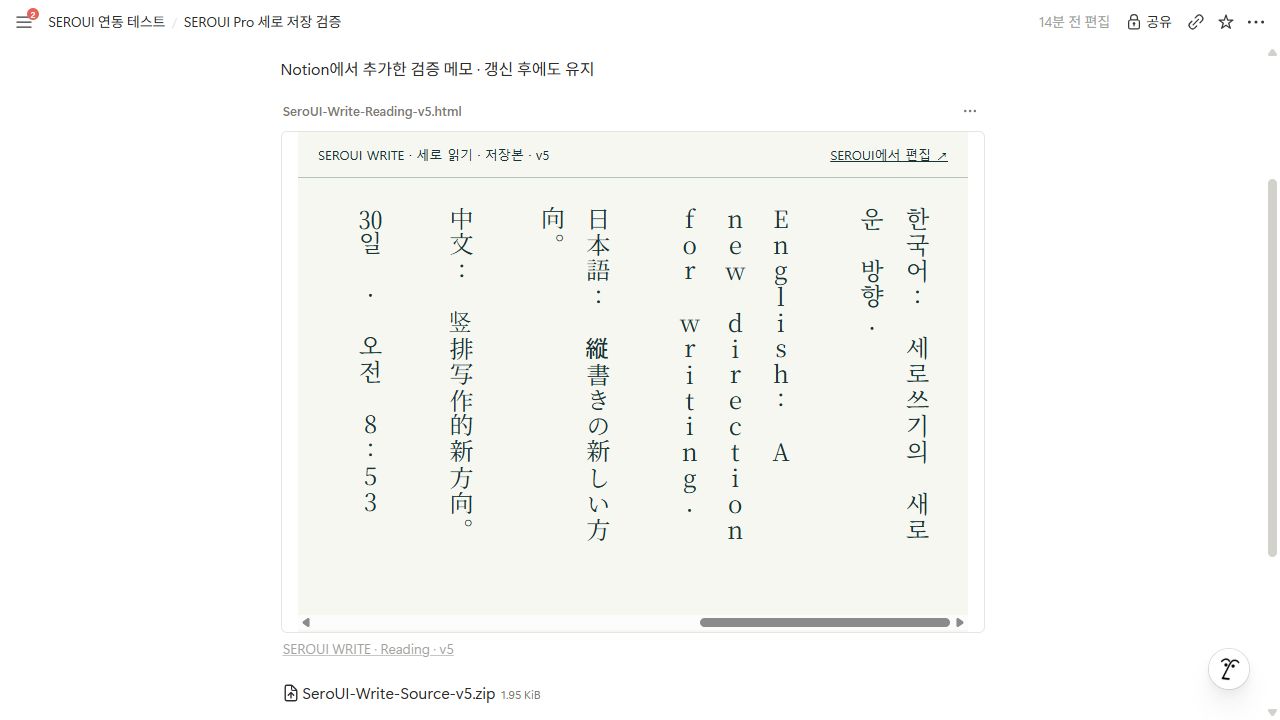
Edit and update the same page
- Click Edit in SEROUI in Notion and sign in to the SEROUI account that owns the publication.
- Choose the linked manuscript/version and Import this version to edit. This loads text, settings, photos and attachments onto this device.
- After editing, return to Layout save · Pro, confirm transfer consent and Update the same Notion page. Use Save a new copy elsewhere to create a different publication.
Updates replace only SEROUI-managed reading/source blocks. Other notes added in Notion and the page title remain. Editing or deleting a managed block directly in Notion can cause a conflict. If another device changed it, import the latest version, merge your changes and publish again.
Backups, Trash and where data lives
Workspace file backup: Free
- Use the top actions menu → Workspace backup to save JSON. It preserves documents, settings, photos, attachments, projects, versions and Trash.
- Keep dated copies in another safe location. The file contains your documents, so store it privately.
- On another device, import the JSON or supported recovery ZIP. Verify documents/projects before clearing the old device.
Periodic recovery copies: Pro
Configure Recovery & backup in Document tools. The default is 10 minutes, adjustable from 1 to 60; internal storage retains up to 5 copies/160 MB. Restoration merges new documents rather than replacing current ones. Desktop can choose an extra external folder. Keep separate file backups as well as browser-stored recovery copies.
Trash and 30-day retention
Delete documents, projects or presets to move them to Trash. Browse vertical cards by scrolling sideways, then Restore. Restoring a document also restores its project chapter position. Items older than 30 days are purged when the app or Trash opens. Permanent deletion/Empty Trash cannot be undone. Deleting an individual version history entry is a separate action.
| Data | Location and care |
|---|---|
| Web documents | Browser/site storage; clearing site data or switching browsers changes access |
| Desktop documents | Local app data; export a backup separately from app files |
| Obsidian | Vault notes, assets and plugin settings; back up the vault |
| Notion Pro sources | Only explicitly published manuscripts retained encrypted on the account server |
Writing statistics and goals
- Open the top actions menu → Writing statistics.
- Review additions/deletions, six months of activity, weekly trends, daily averages and writing streaks.
- Set a daily character goal and view today’s progress.
Statistics measure editing, not importing or reading. The goal counts characters added today; deleting does not reduce that cumulative added count. IME input is counted when committed. Statistics stay on the device, or in Obsidian plugin settings.
Troubleshooting and frequently asked questions
App or plugin will not open
- On Windows, verify the entire ZIP was extracted. For security warnings, see the unsigned-build notice; do not disable protection.
- On Mac, check macOS version and chip choice. If a notarized download is reported damaged, download again from the official page and contact support if it persists.
- If Obsidian cannot find it, check nested folders, missing manifest.json/main.js/styles.css/fonts/io, desktop support and plugin enablement.
Pro or Notion problems
- If Pro is locked, confirm you are using the subscribing account and refresh access. Development accounts can display a test badge.
- If a Notion page is missing, check the connected workspace and page authorization. Workspace administrator policies can restrict connections.
- For update-permission errors, reconnect and allow content updates. Layout-save buttons activate after transfer consent is checked.
- If the page is horizontal, check that you used Layout save · Pro rather than ordinary new-page save. Native Notion text is horizontal.
- For the 5 MB limit, split the document or reduce photos. On a conflict, back up local edits, import the latest version and merge.
Document and export problems
- On a new device, import a workspace backup or an explicitly published Notion source instead of expecting automatic synchronization.
- If fonts, tables or photos differ in another app, use PDF for fixed layout and retain the source backup. Pages compatibility goes through DOCX.
- For input/display problems, back up first and check app/browser version, document language and font. Alpha validation still has gaps in real IME, Apple Silicon hardware and Obsidian application environments.
Official help and terms
- SEROUI WRITE ↗
- Downloads ↗
- Free / Pro ↗
- SEROUI account ↗
- Notion connection / privacy ↗
- Obsidian plugin security ↗
- Notion connections ↗
- Apple: identify your Mac chip ↗
- SEROUI font license ↗
- Noto font license ↗
Need help?
Send your platform, app version, steps to reproduce and error message. Do not send passwords, verification codes or private manuscript text.
seroui@neo-korea.com